
What is GeoCloud Protect?
GeoCloud Protect service is available only on the Leica TS20s equipped with the innovative GMI01 communication module. All GeoCloud Protect functionalities are available with an active GeoCloud Protect subscription.
You can learn more at GeoCloud Protect: Integrated total station security | Leica Geosystems
GeoCloud Protect is your Leica TS20’s digital surveillance service that combines remote locking and real-time tracking to make stolen equipment inoperable and remove its resale value after theft.
The GeoCloud Protect service is seamlessly integrated into GeoCloud Fleet and offers:
-
Locking
-
Flight Mode
-
Stolen Mode
-
Location Tracking
-
Movement Alerts
-
Location History
What is the GMI01 Communication Module?
GeoCloud Protect requires the GMI01 communication module to be installed on the Leica TS20. The GMI01 communication module allows you to protect your device even when not in use, thanks to its connection capabilities and its independent battery. This allows you to remotely lock and track your TS20 whenever and wherever.
🔒 Locking
All the time you want to protect your Leica TS20, you can lock it. This will shut down the device and prevent any use of it until the device is unlocked from GeoCloud Fleet.
Locking a device is simple and can be done by:
-
Click the device you want to lock from the device list
-
Click the icon Lock device and confirm locking
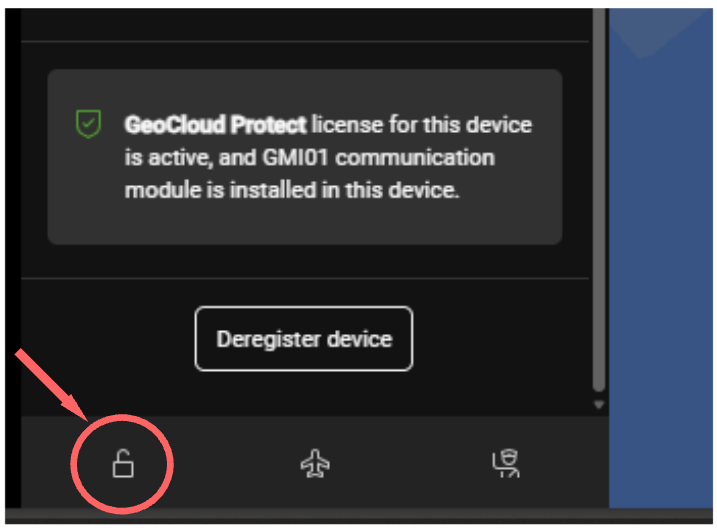
-
The device will shut down, and it cannot be used until unlocked
Unlocking a device can be done the same way as locking. When the device is unlocked, it can be used by turning it on.
-
Click the device you want to lock from the device list
-
Click the icon Unlock device and confirm locking
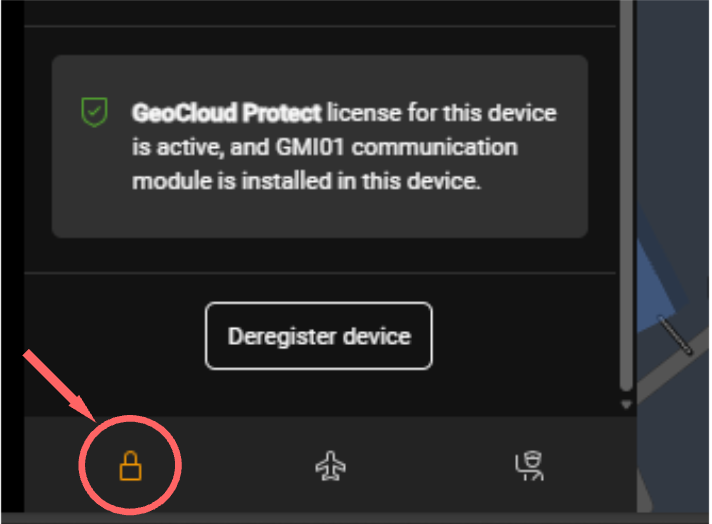
Unlocking a device will not turn it on. It will allow using it the next time once is manually turned on.
✈️ Flight Mode
When you fly with your device or have the intention to shutdown all GMI01 network connections, you can turn off the GMI01 communication module network connections by activating the Flight Mode. When the Flight Mode is activated, no new location data is provided, and the TS20 can no longer be locked or unlocked.
Activating the Flight Mode can be done by:
-
Click the device you want to activate the Flight Mode
-
At the bottom of the section with the location information, click the icon Activate flight mode and confirm it
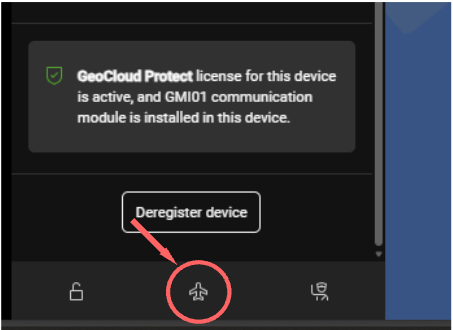
-
The GMI01 network connections will be disabled
The Flight Mode can only be deactivated by restarting the device manually.
👮♂️ Stolen Mode
The Stolen Mode is designed to increase the probability of retrieving the device and decreasing its resale value. When activated, the TS20 will:
-
Automatically lock to prevent any usage of it
-
Increase the frequency of new locations to support retrieval effort while preserving the GMI01 battery
-
Report the theft to Leica Geosystems service centre to prevent any service on the stolen device
The Stolen Mode is designed multiple days of tracking capabilities, thanks to the GMI01 built-in battery. This depends on various conditions.
In Stolen Mode, the device will localise itself every few minutes until the GMI01 battery is above 50%. When the GMI01 battery goes below 50% then a new location will be available every 2 hours.
In case of theft, mark your device as stolen in GeoCloud Fleet by:
-
Click the stolen device in the device list
-
At the bottom of the section with the location information, click the icon Mark as stolen and confirm it
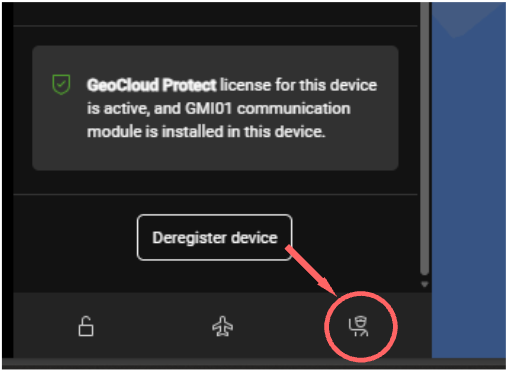
This will activate the Stolen Mode.
When the device is in Stolen Mode, it cannot be unlocked. To unlock it, you must first Mark it as retrieved
When the device is retrieved you can Mark it as retrieved by:
-
Click the retrieved device in the device list
-
At the bottom of the section with the location information, click the icon Mark as retrieved and confirm it
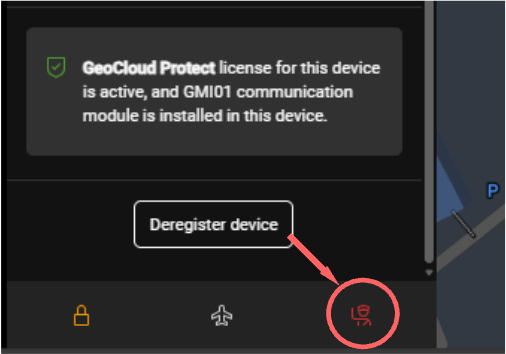
This will deactivate the Stolen Mode.
🔊 Play Sound new
Triggers a loud sound on a TS20 from Fleet (web or mobile) to support stolen-device recovery and device identification within a fleet. Users can start and stop the sound remotely from Fleet. If the device is offline the sound queues and fires on reconnect.
The video shows the feature in action, from its triggering from Fleet to the sound from the TS20.
If the TS20 is turned off, the sound plays more subtly from the communication module (GMI01).
🕗 Location Tracking
Your TS20 updates its position automatically based on movement, except when in Stolen Mode.
When the device is not in Stolen Mode, a new position is available after a fast movement, which signals that the device has started moving. After the first movement, the device will continue updating its position at smart intervals, but only if it is still moving.
If it stops moving, no more locations are sent until the next fast movement in order to save battery.
When the device is in Stolen Mode, a new position is available every few minutes, regardless of whether it was moved or is currently moving. Refer to the Stolen Mode section to learn more.
The device’s location tracking can be disabled and enabled by every user in a company account.
You can recognise devices with disabled location tracking when they have this icon :location-tracking-off:
Every company account’s member can enable the location tracking for every device by:
-
Click on a device in the list
-
In the section Location info, turn it on by switching on the Location tracking switcher
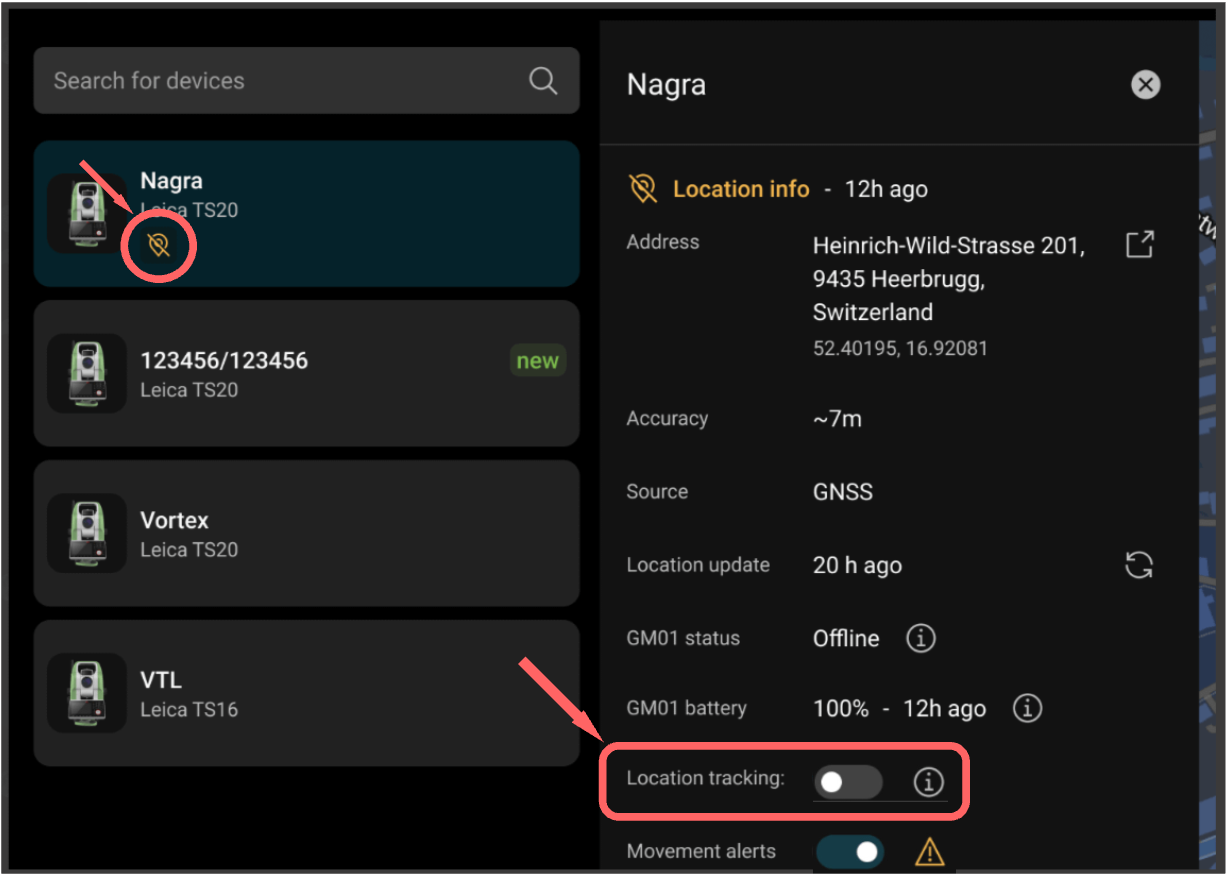
You can disable the Location Tracking from the same switcher. When location tracking is disabled, no new location is computed.
-
Click on a device in the list
-
In the section Location info, turn it off by switching off the Location tracking switcher
🚨 Movement Alerts
The movement alert functionality allows users to be informed when a device is moved.
-
User-specific setting: each user configures their own alerts.
-
Alerts are sent vias email to all users having enabled movement alert
-
Push notifications are sent if the mobile app is installed and notifications are enabled
-
Alerts are triggered every 2 hours when movement is detected
Movement alert is a user-specific function that allows users to subscribe to movement events on the selected device. That means only the user toggling on the setting will receive the notification via email (and on mobile if configured).
-
Click on a device in the list
-
In the section Location info, move the slider for Movement alerts
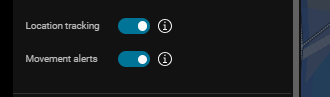
You can disable the movement alert for a device at any time.
⏲️ Location on Request new
This functions allows to request an on-demand location update for a TS20 instead of waiting for the automated location algorithm to fire. Fleet picks the most accurate available source (GPS, Wi-Fi, or cellular).
Requesting a location can take several minutes. If the GMI01 communication module is offline, a location will be computed when the module will be back online
The location computed on demand will not trigger the movement alert if enabled
:re: Location History
Every device’s location updates can be accessed for 30 days in the location history functionality. The location history can be filter by time and location accuracy to help you finding the locations you need.
To access the device’s location history:
-
Click on a device in the list
-
In the section Location History, move the slider for Show on map
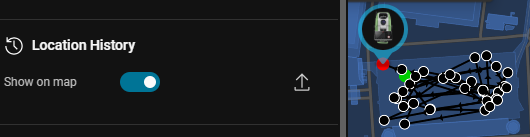
The location history can be exported as .CSV file for further use and sharing.
How to make sure the device is always ready to be used with GeoCloud Protect
|
|
TS20 Usage |
GMI01 Connectivity |
Tracking Capabilities |
Note |
|---|---|---|---|---|
|
Locking |
Prevents use |
Unaffected |
Periodic location updates only when the TS20 is moved or is moving |
|
|
Stolen Mode |
Prevents use |
Unaffected |
Frequent location updates regardless whether the TS20 is moved or is moving |
The theft is notified to Leica Geosystems |
|
Flight Mode |
Remote locking and marking as stolen not possible |
Disabled until TS20 reboot |
Disabled until TS20 reboot |
GMI01 Flight Mode can only be deactivated by rebooting the TS20 |
🧩 Troubleshooting Protect
Nothing to show at the moment
GeoCloud Protect Features
GeoCloud Protect functionalities are available for devices with an active subscription
|
Feature |
Account Manager |
Fleet Manager |
|
Device Operator |
|
|
|---|---|---|---|---|---|---|
|
Remote locking / unlocking
|
WebApp
|
Mobile App
|
WebApp |
Mobile App |
WebApp |
Mobile App |
|
Stolen mode
|
yes |
yes |
yes |
yes |
yes |
yes |
|
Flight mode
|
yes |
yes |
yes |
yes |
yes |
yes |
|
Movement alerts
|
yes |
yes |
yes |
yes |
yes |
yes |
|
Play sound new |
yes |
yes |
yes |
yes |
yes |
yes |
|
Real-time indoor and outdoor location tracking
|
yes |
yes |
yes |
yes |
yes |
yes |
|
Start / pause location tracking
|
yes via push emails |
yes via push notifications |
yes via push emails |
yes via push notifications |
yes via push emails |
yes via push notifications |
|
Location on request new |
yes |
yes |
yes |
yes |
yes |
yes |
|
Location history
|
yes |
no |
yes |
no |
yes |
no |
|
Go to my position on the map |
no |
yes |
no |
yes |
no |
yes |
|
Visualise GMI01 battery status |
yes |
yes |
yes |
yes |
yes |
yes |