
What is a Company Account?
A company account is the top-level entity representing an organization. It serves as the central hub for:
-
A set of users who are members of the company account
-
Registered devices owned by the company
A company account is structured as a standalone entity with no inherent hierarchy or relationship to other company accounts. This means that each company account operates independently, and there is no sharing of information or devices between different company accounts.
The company account can also be used to represent the company's structure, as there may be multiple branches within a company. For example, Company A might have Branch 1, Branch 2, Branch 3, and so on.
A company account in GeoCloud Fleet has no relationship with a myWorld company account
Creating your Company Account
Check your Emails before creating a company account
As you will learn in (Fleet) Managing Users, users can be invited to become members of a company account. Therefore, before creating a company account, check your inbox to verify if somebody in your organisation invited you already.
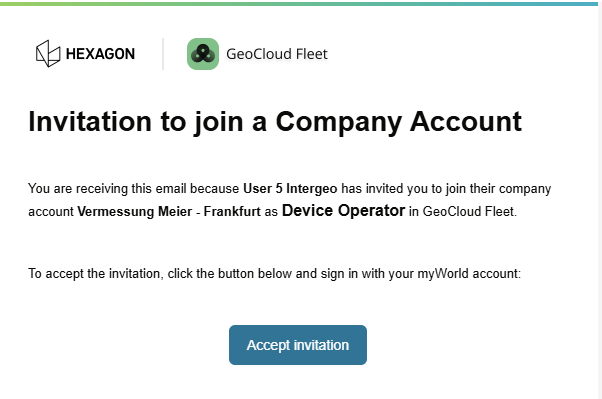
Every user in GeoCloud Fleet can create a company account. The user that creates a company account will be assigned the Admin role in that company account. Learn more in (Fleet) Managing Users
This functionality is only available in the GeoCloud Fleet Web App in your browser (here)
If you’re not aware of any existing company account, you can proceed with creating one. Once set up, you can register your TS20s and invite other relevant team members to collaborate and share access to the devices.
To create your fist company account:
-
When starting GeoCloud Fleet for the first time, click on Create company account
-
Enter a unique company name (2 to 50 characters)
-
Click create company
You can now continue with (Fleet) Managing Users or (Fleet) Managing Devices
Creating another Company Account
Every user in GeoCloud Fleet can create multiple company accounts. The user that creates a company account will be assigned the Admin role in that company account. Learn more in (Fleet) Managing Users
This functionality is only available in the GeoCloud Fleet Web App in your browser (here)
To create another company account:
-
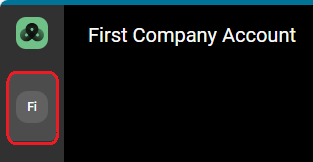
In the menu bar on the left, click on the initials of your first company account.
-
Click Add company account
Switching between Company Accounts
This functionality is available in the GeoCloud Fleet Web App and Mobile Apps (Android and iOS)
In case you are a member of multiple company accounts, then you can switch between them:
-
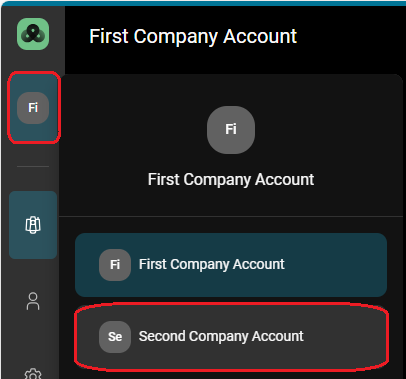
In the menu bar on the left, click on the initials of your first company account.
-
Select the company account to be used.
Deleting a Company Account
Deleting a company account will permanently remove all data associated with it. All users and all devices will be removed. Moreover, all GeoCloud Protect data will be permanently deleted.
Only the Admin of the specific company account can delete it. Learn more in (Fleet) Managing Users
This functionality is only available in the GeoCloud Fleet Web App in your browser (here)
In case you want to delete your company account:
-
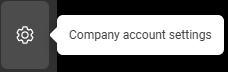
In the menu bar on the left, click the icon for Company account settings.
-
Click Delete company account.
Leaving a Company Account
As Admin, to leave a company account, first appoint another user as the Admin or delete the company account.
Every user role is allowed to leave a company account. Learn more in (Fleet) Managing Users
This functionality is only available in the GeoCloud Fleet Web App in your browser (here)
-
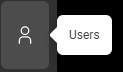
In the menu bar on the left, click the icon for Users.
-
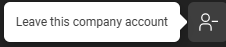
In the row of you name, click the icon Leave this company account.
Company Account Management Features
|
Feature |
Admin |
Fleet Manager |
Device Operator |
|||
|---|---|---|---|---|---|---|
|
|
WebApp
|
Mobile App
|
WebApp |
Mobile App |
WebApp |
Mobile App |
|
Switch company accounts |
yes |
yes |
yes |
yes |
yes |
yes |
|
Leave company account |
yes |
no
|
yes |
no |
yes |
no |
|
Delete company account |
yes |
no |
no |
no |
no |
no |