
Understanding Device Management and Registration
Device Management in GeoCloud Fleet allows Admins and Fleet Managers to register, manage and deregister devices belonging to their company (currently only the Leica TS20 is supported). Once a device is registered in a company account, the company account’s users can access device-specific functionalities and GeoCloud Protect service if available for the specific device.
Further information about device registration is:
-
A device can belong to only one company account at a time
-
A registered device becomes part of the company account’s fleet
-
If a company no longer owns or uses a device, it must be deregistered it before another company can register it
-
The Admin and Fleet Manager have permission to register or deregister devices
-
Device Operators can only view or interact with devices
The device registration in GeoCloud Fleet does not modify any data in myWorld
Register a Leica TS20 or Leica GS05 new
Supported devices are:
-
Leica TS20 (all variants)
-
Leica GS05 (all variants) new
Note that the Leica GS05 does not report its location. Only the TS20 equipped with an active Protect subscription shows its position in Fleet.
This functionality is only available in the GeoCloud Fleet Web App in your browser (here)
The Admin and Fleet Manager can register a device in a company account by following these steps:
-
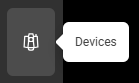
In the menu bar on the left, click the icon for Devices.
-
Click Register device in the middle of the screen.
-
Enter the device’s Serial Number and Equipment Number. Both can be found:
-
On the label in the device’s battery compartment
-
In Captivate software
-
In myWorld
-
-
Confirm the registration and wait
If successful:
-
The device appears in your company account’s Device List with a default device name that is (Serial Number)/(Equipment Number). Learn more how to modify the device name in the next section
-
It can be managed and deregistered
-
GeoCloud Protect functionalities can be used if the device has an active GeoCloud Protect license
🧩 Troubleshooting a Failed Device Registration
The device registration can fail for several reasons:
-
The device is not supported (currently, only TS20 devices can be registered in GeoCloud Fleet)
-
The device Serial Number and/or Equipment Number contains typos
-
The device is already registered in another company account
Note: a device can belong to only one company account at a time
To troubleshoot the issue, follow these steps:
-
Check that you are trying to register a supported device (currently, only TS20 devices can be registered in GeoCloud Fleet)
-
Check that you are inputting the correct Serial Number and Equipment Number. Make sure to check for spaces
-
Check if your device is registered in any other company account you are a member of
In case the device registration continues to fail, please reach out to support.
Modify the Device Name
This functionality is only available in the GeoCloud Fleet Web App in your browser (here)
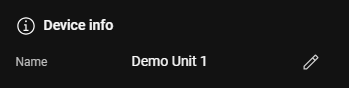
When a device is registered in GeoCloud Fleet a default device name is assigned that includes the Serial Number and Equipment Number. This device name can be freely modified by all users by:
-
Click on the desired device
-
Scroll to the Device Info section
-
Click on the pencil icon to modify the device name
Deregister a device
This functionality is only available in the GeoCloud Fleet Web App in your browser (here)
If a device is sold, transferred or replaced, it must be deregistered. This can be done by:
-
Click on a device in the list.
-
At the bottom of the section with the location information, click Deregister device.
-
Confirm the deregistration.
Now, the deregistered device can be registered in the same or another company account.
Device Management Features
|
Feature |
Account Manager |
Fleet Manager |
|
Device Operator |
|
|
|---|---|---|---|---|---|---|
|
|
WebApp
|
Mobile App
|
WebApp |
Mobile App |
WebApp |
Mobile App |
|
Add / remove device |
yes |
no |
yes |
no |
no |
no |
|
View device information (serial number, equipment number, sensor type) |
yes |
yes |
yes |
yes |
yes |
yes |
|
Define / edit custom device name |
yes |
no
|
yes |
no |
yes |
no |