
What are the available User Roles?
In GeoCloud Fleet, user management allows to control who can access the company account’s functionalities and devices.
As explained in the previous section (Fleet) Managing Company Accounts, in a company account it’s possible to invite users and assign them specific user roles. The user role in a company account governs which actions the user can perform.
The user roles available are 3:
|
|
|
Admin: Top-level admin of the company account. The role is assigned to the creator of a company account and can be assigned to multiple users. |
Fleet Manager: Manages the devices |
Device Operator Uses the devices |
|---|---|---|---|---|
|
GeoCloud Fleet |
|
yes |
no but can leave a company account |
no but can leave a company account |
|
|
|
yes |
no but can view the user list |
no but can view the user list |
|
|
|
yes |
yes |
no |
|
Remote locking / unlocking |
yes |
yes |
yes |
|
|
|
Stolen mode |
yes |
yes |
yes |
|
|
Flight mode |
yes |
yes |
yes |
|
|
Movement alerts |
yes |
yes |
yes |
|
|
Real-time indoor and outdoor location tracking |
yes |
yes |
yes |
|
|
Start / pause location tracking |
yes |
yes |
yes |
|
|
Location history |
yes |
yes |
yes |
Inviting Users
This functionality is only available in the GeoCloud Fleet Web App in your browser (here)
The Admin is the only role that can invite users in a company account. This can be done by following these steps:
-
In the menu bar on the left, click the icon for Users
-
Click Invite user
-
Enter the email address of the user to invite
-
Click Send invitation
-
The invited user receives an email with the invitation to join the existing company account.
In this email, they have to click Accept invitation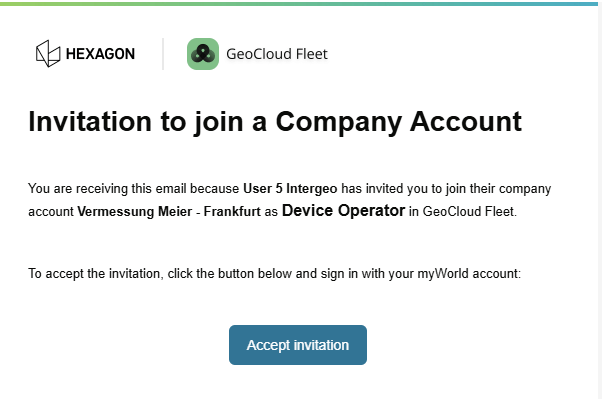
-
After accepting, they are added to the list of users.
Moreover, note the following information:
-
The invited user will be assigned the Device Operator role by default- The role can be modified after the user accepted the invitation
-
The invitation expires automatically after 7 days
-
The Admin can see the pending invitations that did not expire yet
🧩 Troubleshooting User Invitation
|
Problem |
Likely Cause |
Resolution |
|---|---|---|
|
Invitation cannot be accepted |
Invitation has expired |
Invited user asks Admin to resend a new invitation |
|
|
Invitation was already accepted |
Invited user checks the company account switcher |
|
Invitation email missing |
Email filters |
Invited user checks spam / confirm email address |
|
User cannot be invited |
Invited user is already a member of the company account |
Admin checks if the email address is in the user list |
Viewing Active Users and Pending Invitations
This functionality is only available in the GeoCloud Fleet Web App in your browser (here)
All user roles have access to the list of company account’s members by:
-
In the menu bar on the left, click the icon for Users.
-
Displayed is a list of users
Note that only the Admin can see the pending invitations.
Modifying a User Role
This functionality is only available in the GeoCloud Fleet Web App in your browser (here)
The Admin can modify the user role for all users in their company account by:
-
In the menu bar on the left, click the icon for Users
-
In the list of users, look for the name of a specific user
-
Click the dropdown list for User role
-
Select the required role
Removing Users
This functionality is only available in the GeoCloud Fleet Web App in your browser (here)
The Admin can remove a user from their company account by:
-
In the menu bar on the left, click the icon for Users
-
In the row of the specific user, click the icon Remove user

User Management Features
|
Feature |
Account Manager |
Fleet Manager |
|
Device Operator |
|
|
|---|---|---|---|---|---|---|
|
|
WebApp
|
Mobile App
|
WebApp |
Mobile App |
WebApp |
Mobile App |
|
Invite users to a company account |
yes |
no |
no |
no |
no |
no |
|
Monitor active users in a company account |
yes |
no |
yes |
no |
yes |
no |
|
Monitor invited users in a company account |
yes |
no
|
no |
no |
no |
no |
|
Modify user role |
yes |
no |
no |
no |
no |
no |
|
Remove users |
yes |
no |
no |
no |
no |
no |